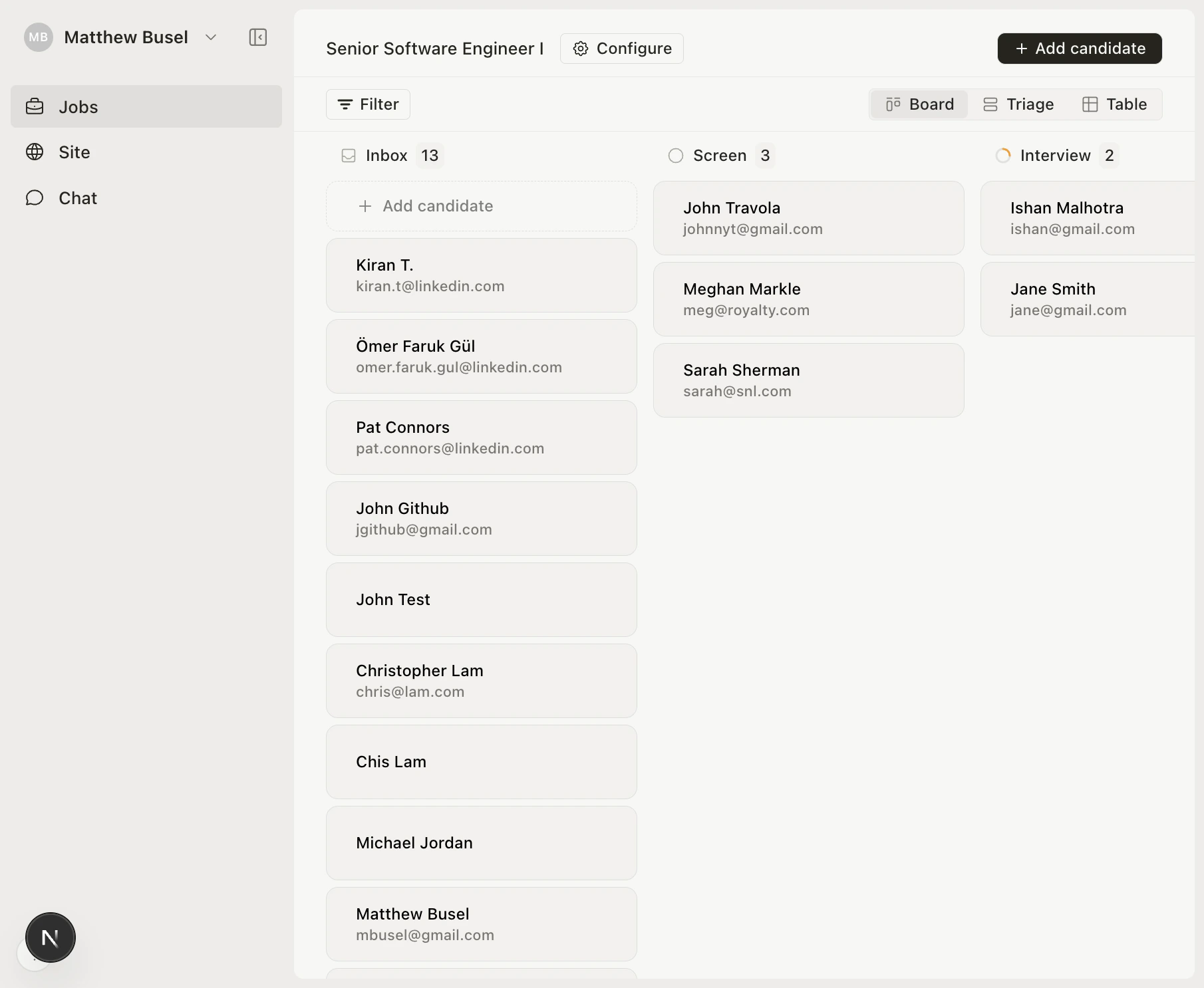
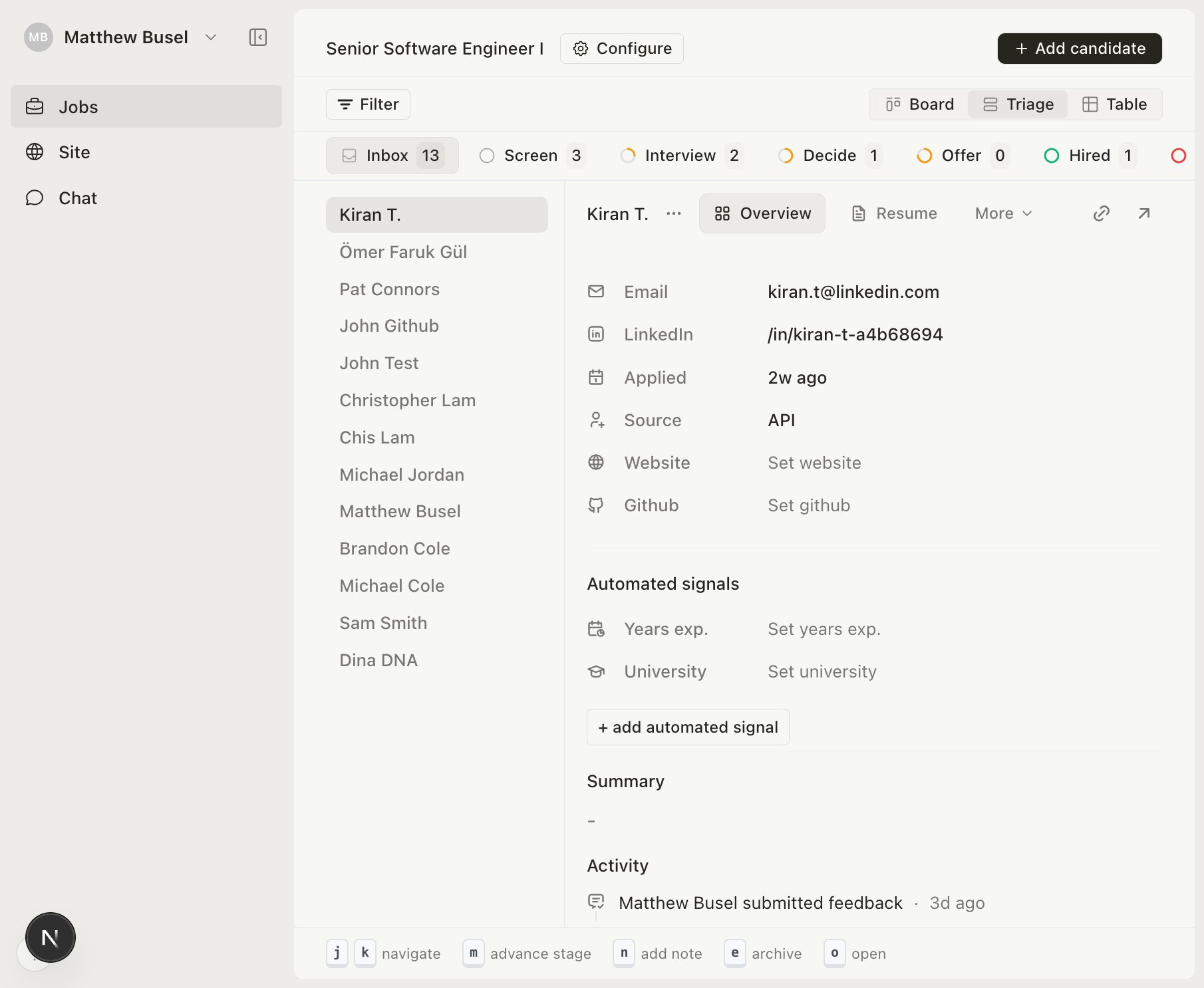
Every job has a pipeline with stages that candidates move through. Switch between three views using the tabs at the top of any job page.
Board view
The default Kanban view. Each stage is a column, each candidate is a card. Drag and drop to move candidates between stages.
Table view
A sortable spreadsheet showing candidate name, stage, email, LinkedIn, resume, and more. Use the stage dropdown on each row to move candidates.
Triage view
A keyboard-driven split-pane built for fast review. Candidate list on the left, full detail on the right. See Triage View for the full keyboard shortcut reference.
Pipeline stages
Every job starts with default stages: Inbox → Screen → Interview → Offer → Hired → Archived. You can add, rename, and reorder custom stages from the job’s Configure page.
Inbox, Hired, and Archived are fixed — they can’t be removed or reordered.
Moving candidates
Move candidates from any view:
- Board — Drag and drop cards
- Table — Use the stage dropdown
- Triage — Press
m to advance, e to archive
- Application page — Change the stage dropdown
- AI Chat — e.g., “Move Sarah to Interview”