> ## Documentation Index
> Fetch the complete documentation index at: https://docs.hireloam.com/llms.txt
> Use this file to discover all available pages before exploring further.
# Managing Your Pipeline
> Review candidates across Board, Triage, and Table views.
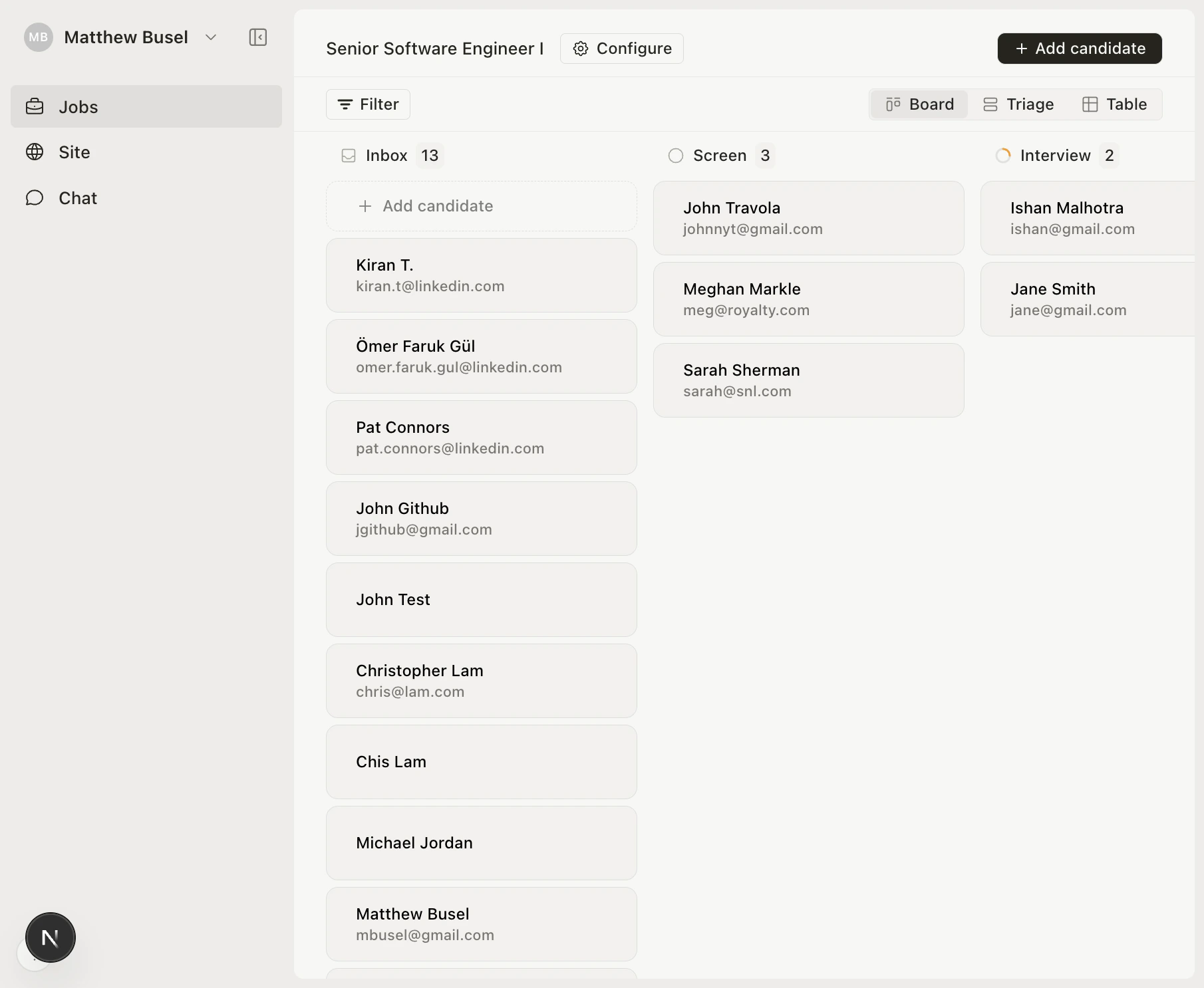
Every job has a pipeline with stages that candidates move through. Switch between three views using the tabs at the top of any job page.
## Board view
The default Kanban view. Each stage is a column, each candidate is a card. Drag and drop to move candidates between stages.
 ## Table view
A sortable spreadsheet showing candidate name, stage, email, LinkedIn, resume, and more. Use the stage dropdown on each row to move candidates.
## Table view
A sortable spreadsheet showing candidate name, stage, email, LinkedIn, resume, and more. Use the stage dropdown on each row to move candidates.
 ## Triage view
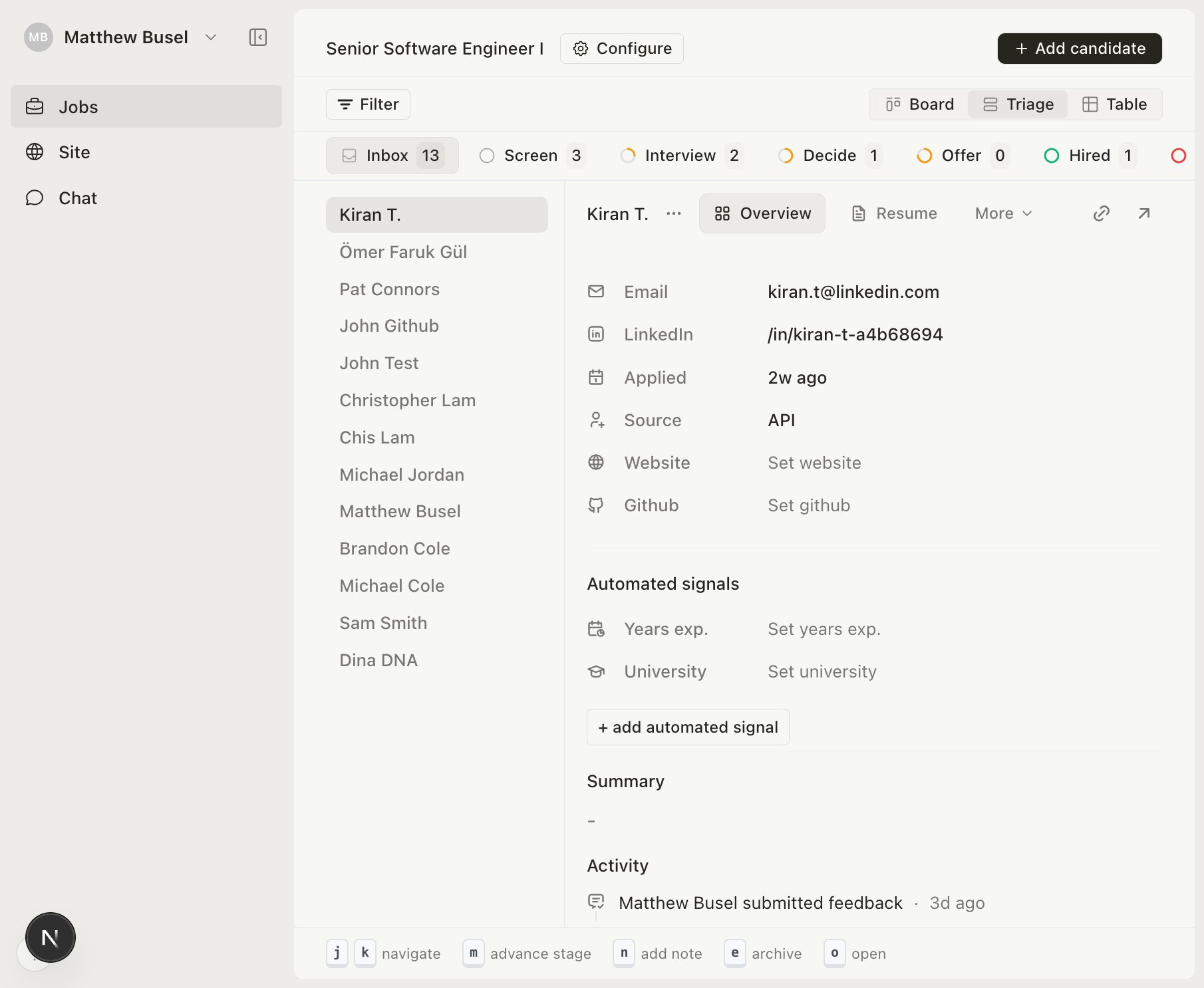
A keyboard-driven split-pane built for fast review. Candidate list on the left, full detail on the right. See [Triage View](/help/jobs/triage) for the full keyboard shortcut reference.
## Triage view
A keyboard-driven split-pane built for fast review. Candidate list on the left, full detail on the right. See [Triage View](/help/jobs/triage) for the full keyboard shortcut reference.
 ## Pipeline stages
Every job starts with default stages: **Inbox → Screen → Interview → Offer → Hired → Archived**. You can add, rename, and reorder custom stages from the job's **Configure** page.
**Inbox**, **Hired**, and **Archived** are fixed — they can't be removed or reordered.
## Moving candidates
Move candidates from any view:
* **Board** — Drag and drop cards
* **Table** — Use the stage dropdown
* **Triage** — Press `m` to advance, `e` to archive
* **Application page** — Change the stage dropdown
* **AI Chat** — e.g., "Move Sarah to Interview"
## Pipeline stages
Every job starts with default stages: **Inbox → Screen → Interview → Offer → Hired → Archived**. You can add, rename, and reorder custom stages from the job's **Configure** page.
**Inbox**, **Hired**, and **Archived** are fixed — they can't be removed or reordered.
## Moving candidates
Move candidates from any view:
* **Board** — Drag and drop cards
* **Table** — Use the stage dropdown
* **Triage** — Press `m` to advance, `e` to archive
* **Application page** — Change the stage dropdown
* **AI Chat** — e.g., "Move Sarah to Interview"